
Chapter 7 · 7.10
Your Nextcloud as a network drive (WebDAV) in Explorer or Finder
You can also connect your WebOké Nextcloud as a network drive, without an app. This works via WebDAV. Your files then don't sit on your computer: everything goes directly over the internet. For everyday work we recommend the desktop app with virtual files (Virtual files: see everything, only download what you open); a network drive is handy on a computer where you're not allowed to install anything, or for a program that needs a drive letter.
What do you need?
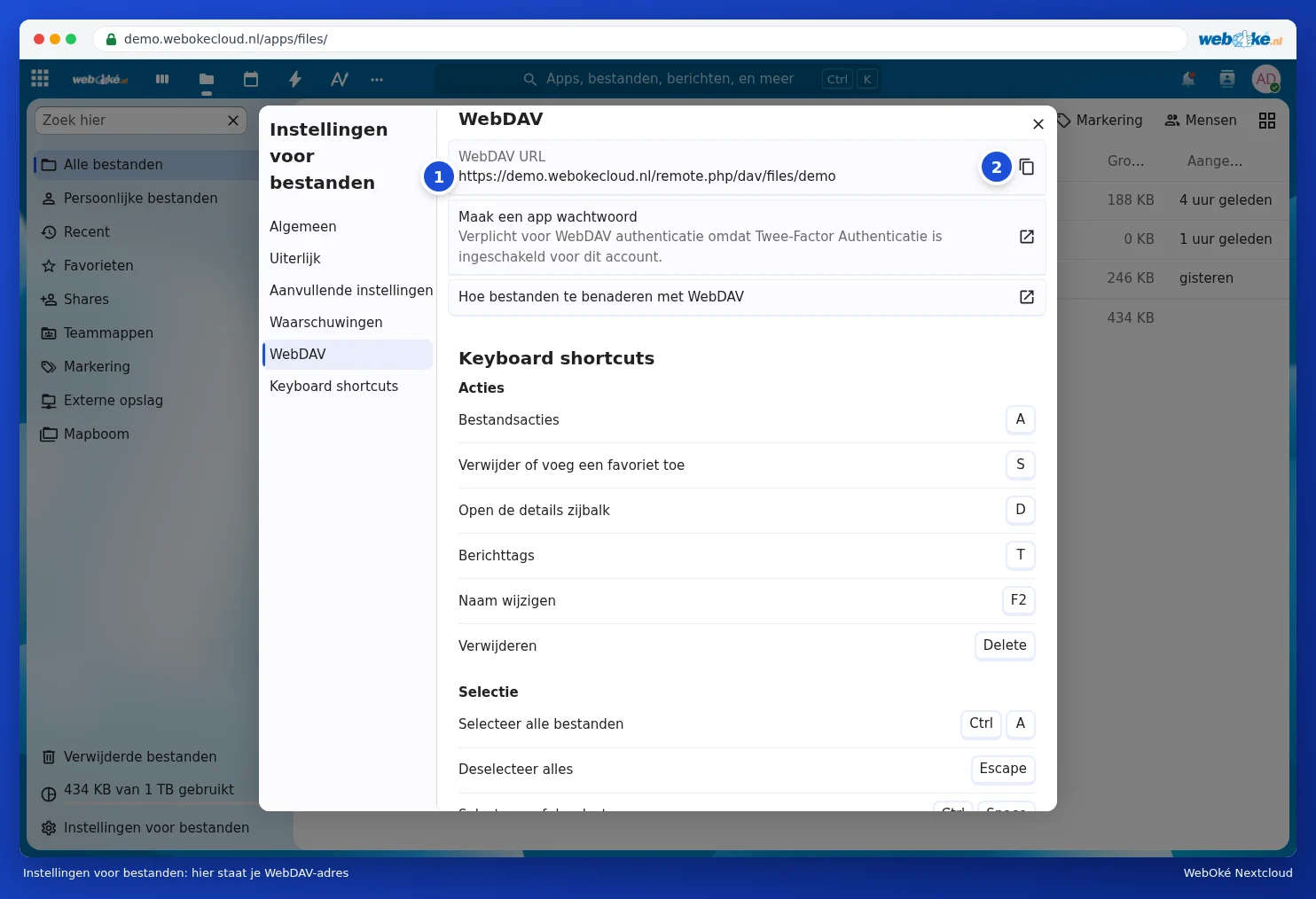
- The WebDAV address. Open the Files app in your Nextcloud and click Files settings at the bottom left. Choose WebDAV on the left. Next to WebDAV URL you'll see your address (1), with a button on the right to copy it (2). It looks like https://demo.webokecloud.nl/remote.php/dav/files/demo/, with your address and username.
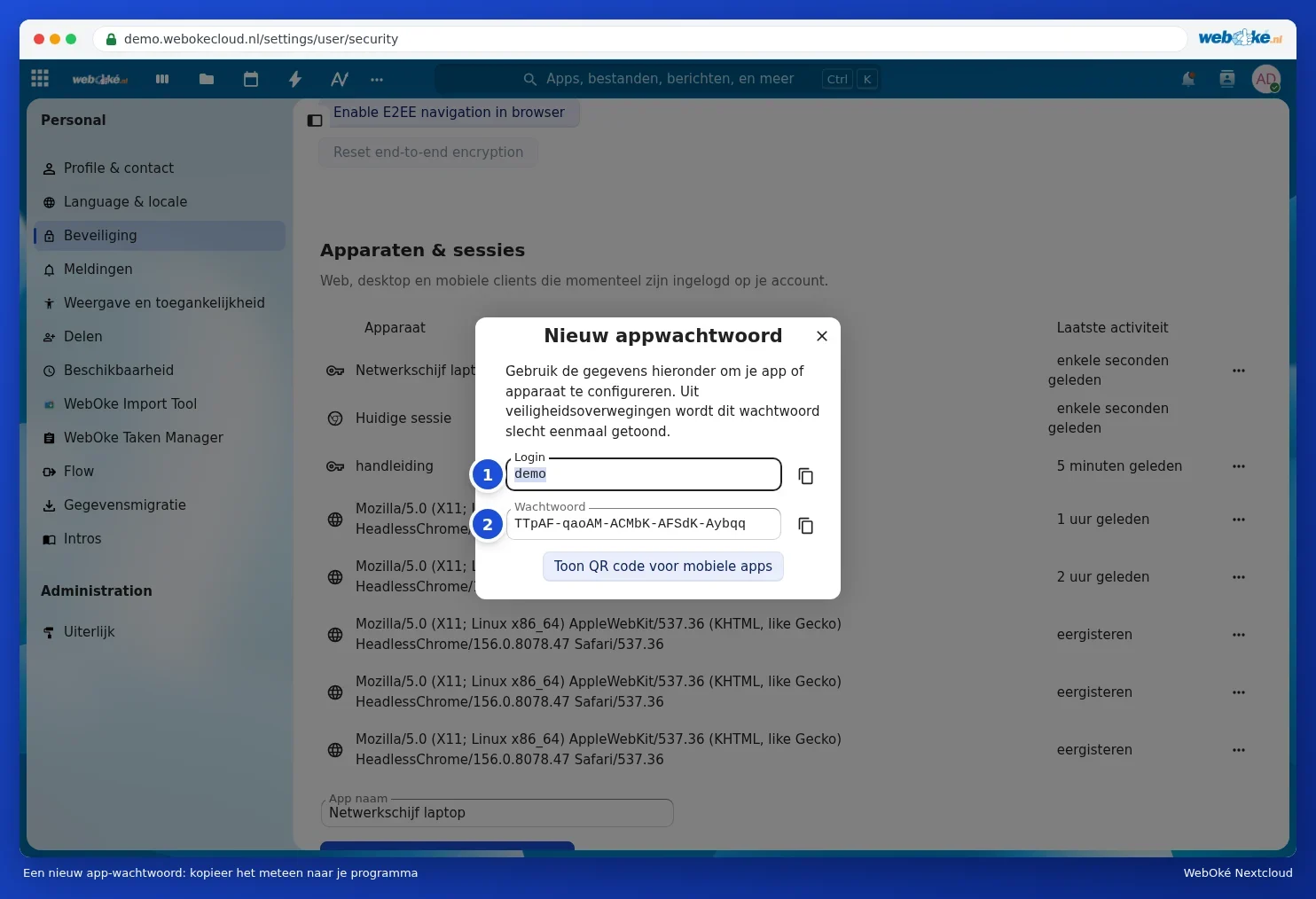
- An app password. Because your WebOké Nextcloud is protected with a login code, your usual password won't work here. Click Create an app password in the same window, or go to Settings, Security, Devices & sessions. At the bottom, enter a name such as Laptop network drive under App name and click Create new app password. If your Nextcloud asks for your password (Authentication required), enter it. In the New app password window you'll see your Login (1) and the Password (2). Copy the password straight away; you'll only see it once. See also App passwords: when and how to use them.
Windows: setting up a network connection
- Open Explorer and click This PC on the left.
- Click the three dots at the top (or Computer) and choose Map network drive.
- Choose a drive letter, for example N:, and paste the WebDAV address under Folder.
- Tick Reconnect at sign-in and Connect using different credentials. Click Finish.
- Enter your username and the app password, and tick Remember my credentials.
Mac: connecting to server
- In Finder, choose Go in the menu bar, then Connect to Server.
- Paste the WebDAV address as the server address and click Connect.
- Enter your username and the app password. Your Nextcloud will then appear in Finder under Locations.
Linux
In most file managers (such as Files in GNOME) you choose Other Locations and enter the address under Connect to Server using davs:// instead of https://, for example davs://demo.webokecloud.nl/remote.php/dav/files/demo/. In KDE, add your Nextcloud under Online Accounts in the system settings.
Known limitations
| What you notice | Why | What you can do |
|---|---|---|
| After a restart, the drive is gone or Windows asks for your password again | Windows's built-in WebDAV is prone to this | See A WebDAV network drive that disappears after a restart |
| Files larger than about 50 MB don't work on Windows | Windows has a default limit for WebDAV | Use the desktop app or the browser for large files; see A WebDAV network drive that disappears after a restart |
| Windows shows the free space on your C drive instead of your Nextcloud | WebDAV doesn't pass on that information | Check how much space you have at the bottom left of Files in your Nextcloud |
| Slow with lots of small files | Each file travels separately over the internet | Use the desktop app |
| Message about too many login attempts | An old connection is trying to log in with an incorrect password | See IP address throttled by an old app: which one is it? |
Please note: if you no longer use the network drive, revoke the app password via Devices & sessions (see Viewing, revoking, or remotely wiping devices and sessions).