
Chapter 3 · 3.5
App passwords: when and how to use them
Watch it in a short video
Because WebOké Nextcloud asks for an extra code when you log in, some apps can't log in with your regular password. They simply can't enter that code. For such apps, you create an app password: a separate, long password that's only used for that one app.
When do you need an app password?
| App or device | App password needed? |
|---|---|
| Nextcloud Files on your computer | No: you log in via your browser and the app handles it itself (Installing Nextcloud Files on Windows) |
| Nextcloud app on your phone or tablet | No, you log in via the login screen in the app. However, you can scan an app password as a QR code (The Nextcloud app on iPhone or iPad) |
| Calendar and contacts on your iPhone, iPad or Mac | Yes (Calendar and contacts on the iPhone and iPad, Calendar and Contacts on the Mac) |
| DAVx5 on Android | Usually not: choose to log in via the browser. If that doesn't work, use an app password (Calendar and contacts on Android with DAVx5) |
| Thunderbird | Yes (Calendar and contacts in Thunderbird) |
| Outlook with CalDav Synchronizer | Yes (Calendar in Outlook with CalDav Synchronizer) |
| Your Nextcloud as a network drive (WebDAV) | Yes (Your Nextcloud as a network drive (WebDAV) in Explorer or Finder) |
| Other programs, such as backup software on a NAS | Yes |
Tip: Does an app show the error 401, or does it keep asking for your password? Then it's almost always trying to log in with your regular password. Create an app password and enter that instead. See also An app says "401" or keeps asking for your password.
Creating an app password
- Click your profile picture or initials in the top right.
- Choose Settings.
- Click Security on the left.
- Scroll down to Devices & sessions.
- At the bottom, under App name (1), enter a name you'll recognise the app by later, for example Calendar iPhone Anne.
- Click Create new app password (2).

The New app password window opens. It shows your username (under Login) and the new app password (under Password). Copy the password and paste or type it into the app, in the field where it asks for your password. Use your regular Nextcloud username as the username.
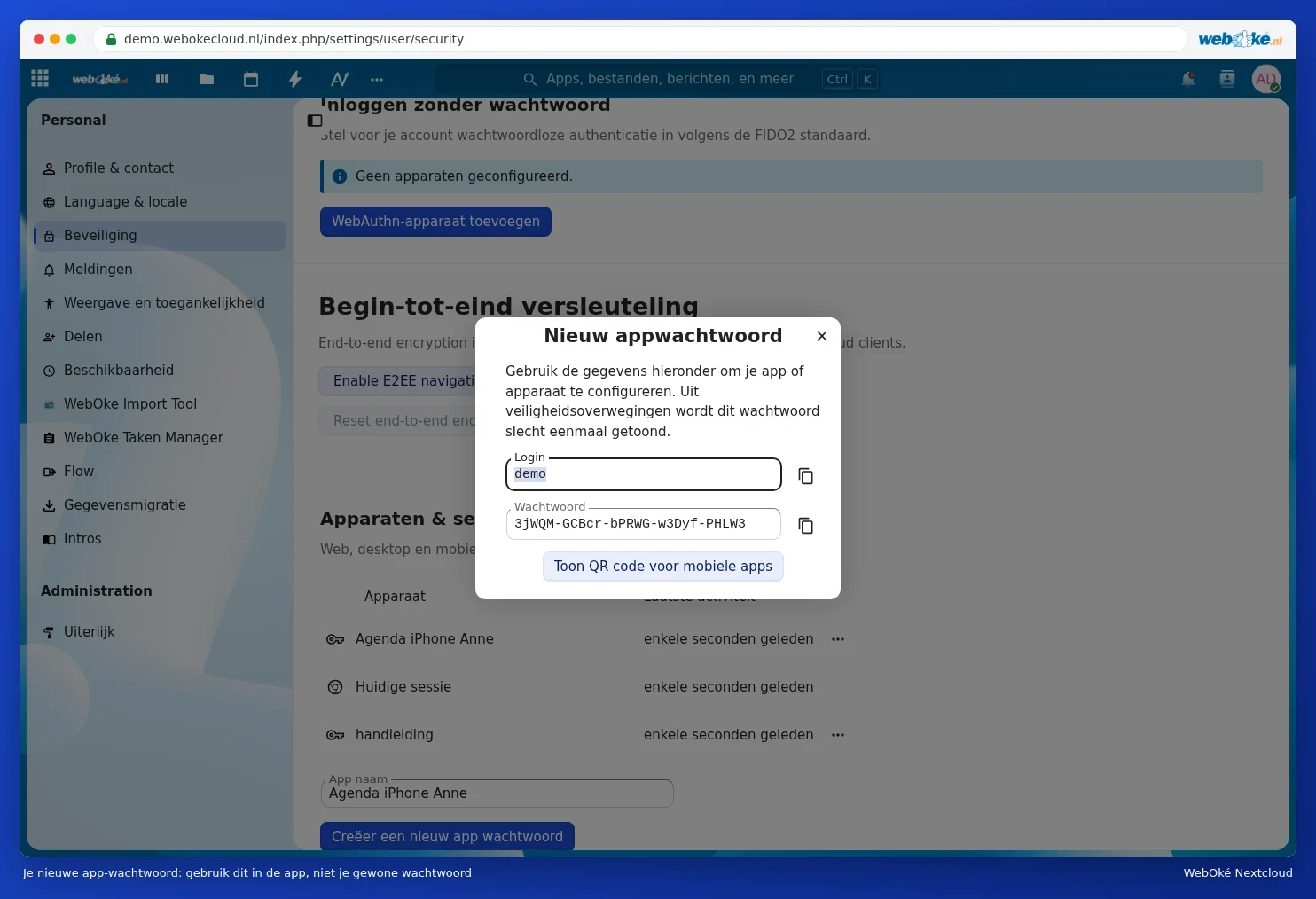
If you're setting up an app on your phone, you can also click Show QR code for mobile apps. The Nextcloud app on your phone can scan this QR code when logging in.

Please note: You only see the app password once. Once you close the window, you can't retrieve it again. Lost it? Revoke the old one and create a new one. Treat an app password just as carefully as your regular password: whoever has it can access your files.
Good habits
- One app password per app per device. So a separate one for the calendar on your iPhone and for Thunderbird on your laptop. If you lose one device, you only need to revoke that password.
- A clear name. Mention the device, app and owner, so you'll know what it is later.
- Changing your regular password? Your app passwords will simply keep working. If you want to block an app specifically, revoke its app password instead.
- Remove. If you no longer use an app, revoke its app password. You can read how to do that in Viewing, revoking, or remotely wiping devices and sessions.