
Chapter 9 · 9.11
Calendar and Contacts on the Mac
On the Mac, the apps Calendar, Contacts and Memories work directly with your WebOké Nextcloud. You add a CalDAV account for your calendars and tasks and a CardDAV account for your contacts.
Please note: your usual password won't work here. Your WebOké Nextcloud asks for an extra code when you log in, and a calendar or contacts app can't fill that in. So use an app password instead: a separate password for one device or program. You'll find out how to create one in App passwords: when and how to use them; here's a short summary.
Step 1: create an app password
- Log in to your WebOké Nextcloud on your computer, click your profile picture in the top right and choose Settings.
- Click Security on the left and scroll to Devices & sessions.
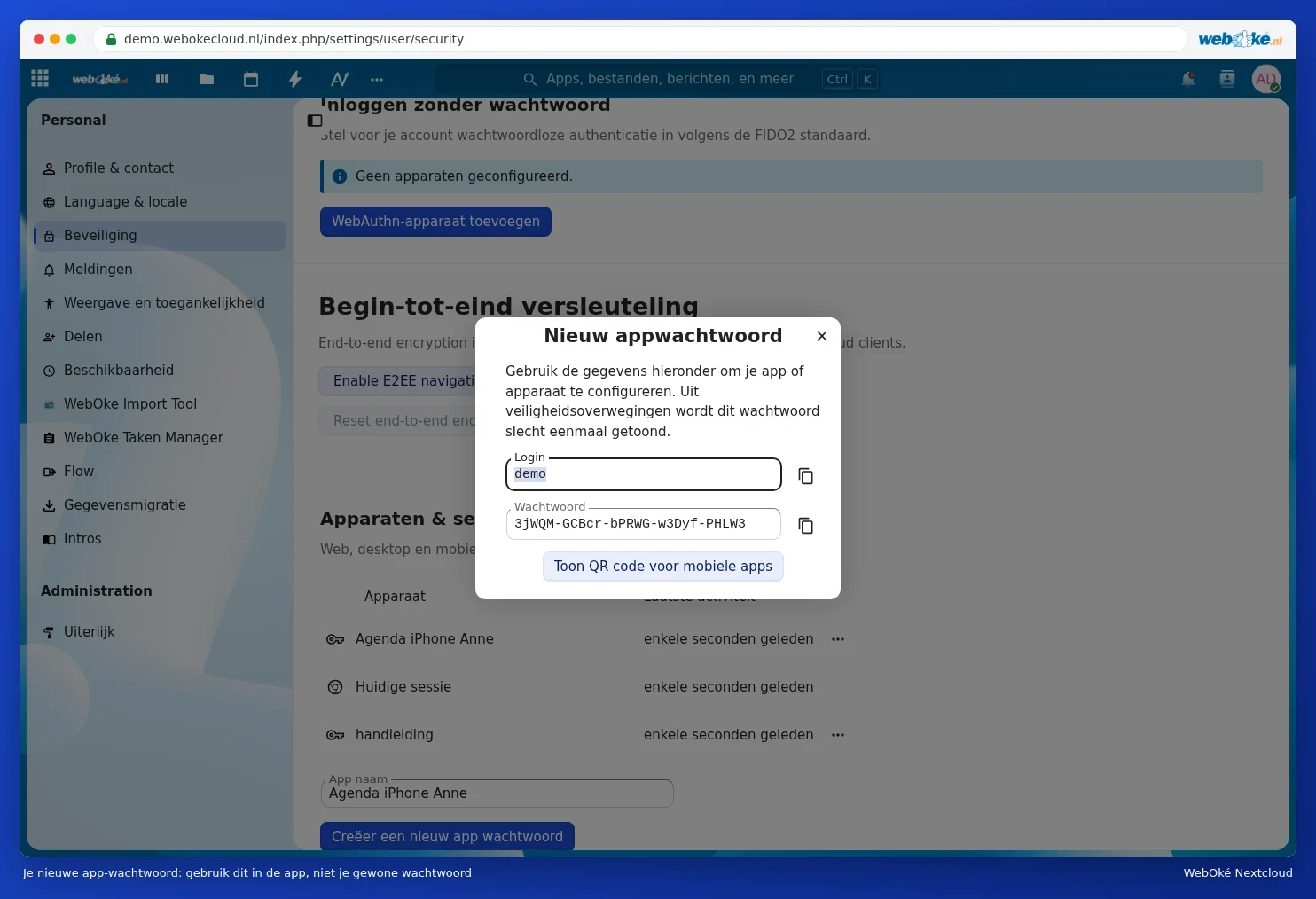
- Enter a recognisable name under App name (1), for example Mac calendar, and click Create new app password (2). Your Nextcloud may ask for your usual password once more.
- You'll now see your Login (your username) and a long Password. Leave this window open, you'll need it in a moment. The password is only shown once.

Step 2: add your calendar
- Open the Calendar app on your Mac.
- Choose Calendar in the menu bar, then Add Account.
- Choose Other CalDAV Account and click Continue.
- Choose Manual for Account Type.
- Enter your username, the app password and <your-address> as the server address, then click Sign in.
- Choose which apps may use the account: Calendars and, if you want, Reminders.
Doesn't Manual work? Then choose Advanced for Account Type and fill it in like this:
| Field | What do you enter? |
|---|---|
| Username | Your username |
| Password | The app password |
| Server Address | <your-address> |
| Server Path | /remote.php/dav/principals/users/<username>/ |
| Port | 443, with SSL ticked |
Step 3: add your contacts
- Open the Contacts app.
- Choose Contacts in the menu bar, then Add Account.
- Choose Other Contacts Account and click Continue.
- Choose CardDAV and Manual for Account Type. Enter your username, the app password and <your-address>, then click Sign in.
Throughout this article, replace <your-address> with the address you use to open your Nextcloud in the browser (without https://), for example yourname.webokecloud.nl or cloud.yourcompany.com. Replace <username> with your username.
You can also add both accounts via System Settings, Internet Accounts. The exact names of the buttons vary slightly between macOS versions, but the details you enter are the same.
Choosing a default calendar
In the Calendar app, go to Calendar, Settings, General and choose a calendar from your Nextcloud under Default Calendar. New appointments will then automatically go into your Nextcloud. In Contacts, choose the Default Account under Settings, General.
Tip: do you see duplicate contacts on your Mac after transferring them? The Contacts app can find and merge duplicate cards. See Cleaning up duplicate contacts after transferring.