
Chapter 6 · 6.2
Restoring an older version and naming versions
Watch it in a short video
Every time a file is changed, your WebOké Nextcloud saves the previous state as a version. Did you delete something you actually need, or did a colleague overwrite a document? Then you can simply restore an older version.
Viewing the versions of a file
- Right-click the file and choose Details.
- Open the Versions tab (1) in the sidebar.

At the top is the Current version (2). Below it are the older versions (3), showing who made the change, when, and the file size. The very first one is called Initial version. Click an older version to view it.
What can you do with a version?
Click the three dots next to an older version:
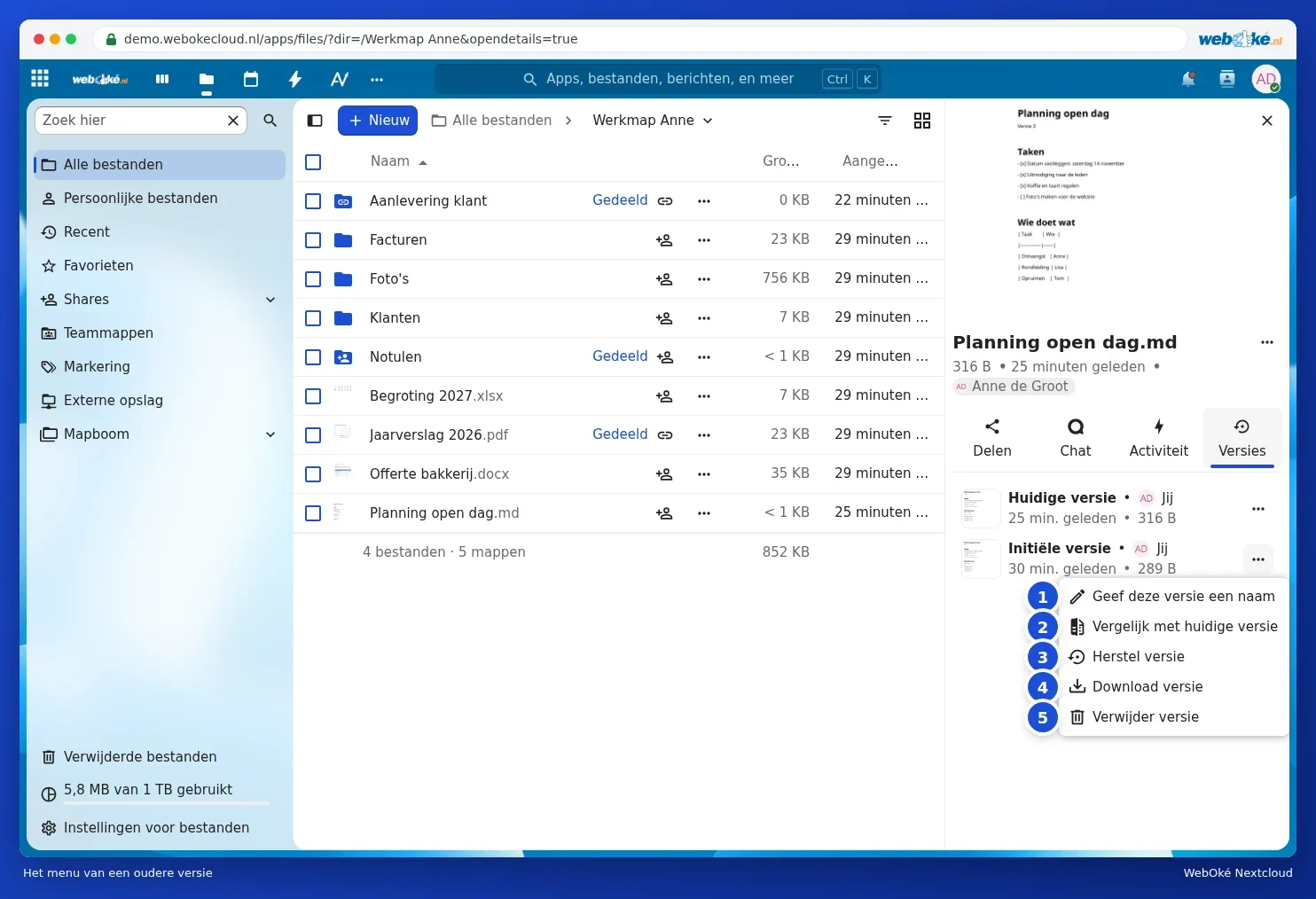
- Name this version (1): for example, "Submitted to council". This makes it easy to find again later. A named version is kept, even when older versions are automatically cleaned up.
- Compare to current version (2): you see the old and the current version side by side.
- Restore version (3): the old version becomes the current one again. The version you replace is also kept as a version itself. So you lose nothing.
- Download version (4): save the old version separately to your computer.
- Delete version (5): remove a version you no longer need.
Tip: if you work in Euro-Office, Euro-Office also has its own version history. See the Euro-Office manual.
Please note: versions only exist for files in your WebOké Nextcloud. A file that only exists on your computer and has never been synchronised has no versions.