
Chapter 5 · 5.1
Working with cells, rows and columns
A spreadsheet consists of cells in rows (1, 2, 3) and columns (A, B, C). Each cell has an address: B5 is the cell in column B, row 5. In Euro-Office, you simply open xlsx files from Excel and ods files from LibreOffice in your browser.
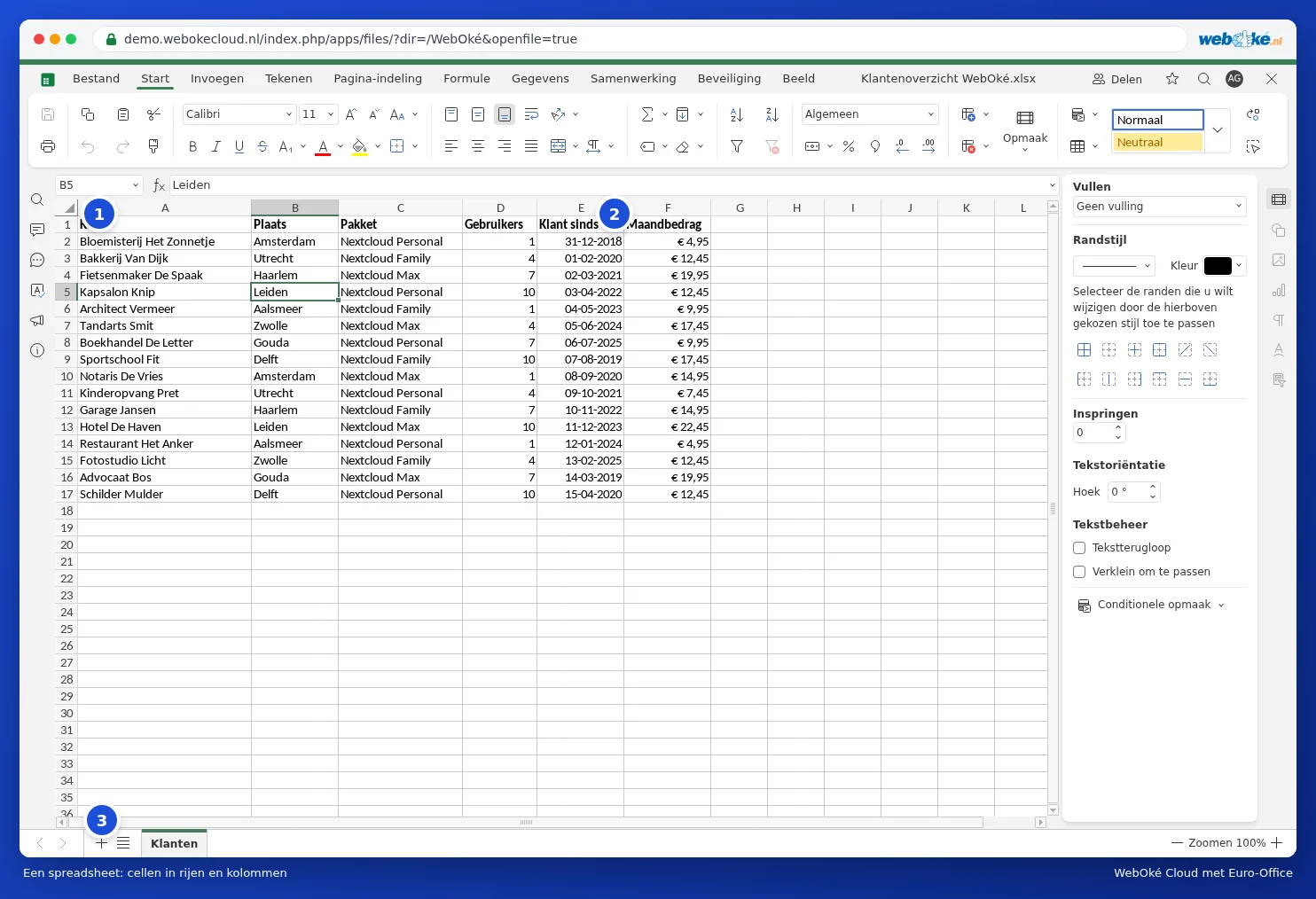
The parts of the screen
- Name box (1): the address of the selected cell. Type an address here, such as F2, or a range such as A1:F17, and press Enter to go there directly.
- Formula bar (2): the contents of the cell. If the cell contains a formula, you'll see the formula here and the result in the cell.
- Sheets (3): the tabs of the workbook at the bottom. Use the plus icon to create a new sheet. See Managing sheets.
Typing and editing data
- Click a cell and type. Press Enter to move to the cell below, or Tab for the cell to the right.
- Want to edit a cell without retyping everything? Double click the cell or press F2.
- Press Delete to clear a cell.
- Drag the small square in the bottom right corner of a cell to fill in the content further. Type "January" and drag, and Euro-Office automatically fills in February, March and so on.
Selecting
- Click a column letter or row number to select the entire column or row.
- Drag with the mouse, or hold Shift and use the arrow keys, to select a range.
- Hold Ctrl to select cells that aren't next to each other.
- Press Ctrl + A to select everything.
Inserting or deleting rows and columns
On the Home tab, click Insert cells (1) and choose Entire row or Entire column. Use the button next to it to delete cells, rows or columns. Faster: right click a row number or column letter and choose Insert or Delete.

Width and height
Drag the line between two column letters to make a column wider. Double click that line and the column becomes exactly as wide as the longest text. Use Format on the Home tab to set the row height and column width precisely.
Tip: does a long text not fit in a cell? Click Wrap text on the Home tab (or tick Wrapping in the panel on the right), and the text will continue onto multiple lines within the cell. Use Merge Center to turn a few cells into one wide cell, handy for a title.