
Chapter 3 · 3.2
Setting up Two-Step Authentication
With Two-Step Authentication (also known as two-factor authentication or 2FA), logging in to DirectAdmin requires a code in addition to your password. That code comes from an app on your phone and changes every 30 seconds. If someone guesses or steals your password, they still can't get in without your phone.
When is this useful?
DirectAdmin's Two-Step Authentication protects the direct login with your DA username and DA password (see Signing in directly on port 2222). If you always log in via My WebOké, My WebOké creates a one-time login link for you. You only get that link after logging in to My WebOké, with the extra code that My WebOké asks for. So make sure to also set up My WebOké's security properly (see below).
Do you use the DA password, for example because you log in directly or because others know it? Then be sure to enable Two-Step Authentication.
What do you need?
An authenticator app on your phone, for example Google Authenticator, Microsoft Authenticator, Authy, FreeOTP or 2FAS. Password managers such as Bitwarden and 1Password can also generate these codes.
Step 1: open Two-Step Authentication
- Click Hello, followed by your username in the top right, and choose Profile.
- Click the Two-Step Authentication tab. You can also get here via the menu: Advanced Features > Two-Step Authentication.
- You'll see the message This account has two-step authentication disabled. Click GENERATE SECRET (1).
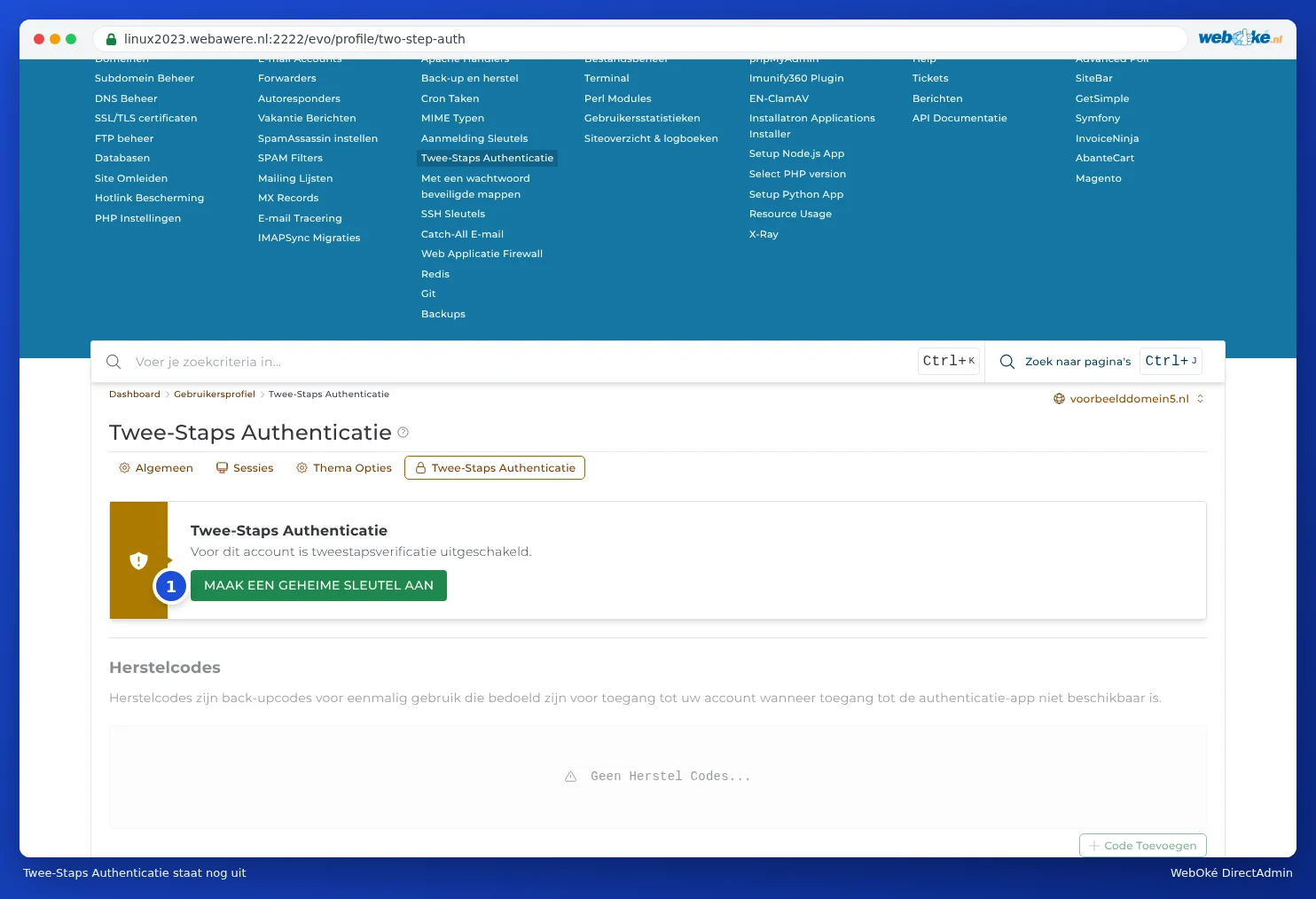
Step 2: link your app
DirectAdmin now shows two steps: Setup Authentication and Check one-time password.
- Open your authenticator app and choose to add a new account or tap the plus sign.
- Scan the QR code (2) with your app. If scanning doesn't work, type in the key (1) shown above the QR code instead. Use the button next to it to copy it.
- Your app now shows a 6-digit code for DirectAdmin.

Step 3: check the code and enable
- Type the code from your app into the field next to Check one-time password (3).
- Click ENABLE TWO-STEP AUTHENTICATION (4).
If the code is correct, Two-Step Authentication is now enabled. Then immediately generate your recovery codes (see Recovery codes, and what to do if you've lost your authenticator). You'll need these if you lose your phone.
Please note: If you close the page before clicking enable, Two-Step Authentication will still be off. Just start again with GENERATE SECRET and remove the half-finished account from your app.
Logging in with Two-Step Authentication
If you log in directly, you first enter your username and password as usual. DirectAdmin then asks for the code from your app. Open the app, type in the current code and click login.
Troubleshooting
- The code isn't accepted. Check that the time on your phone is correct. The codes are based on time: if your phone's clock is a few minutes fast or slow, the code won't match. Set the time to automatic.
- After a few wrong codes, I can't get in at all anymore. Wrong codes count as failed login attempts. After too many attempts, the server blocks your IP address for a while. See Solving login problems.
- I have a new phone. Transfer the accounts using your app's export function, or set up Two-Step Authentication again with a new secret. Do this before wiping your old phone.
- I've lost my phone. See Recovery codes, and what to do if you've lost your authenticator.
Can I do this in My WebOké too?
My WebOké has its own extra security layer. By default, you receive a code by email when logging in. You can use an authenticator app instead: go to My Administration, then Login details, and under Two-factor authentication choose Set up authenticator app. This is a separate setting, independent of DirectAdmin. Your app will then have two accounts: one for My WebOké and one for DirectAdmin.