
Chapter 17 · 17.4
X-Ray: tracking down slow pages
Is your website slow, or does it keep hitting its limits? Then you'll want to know why: a plugin, a slow database query, or an external service that takes a long time to respond. X-Ray measures this for you. It tracks every request to your website for a while and shows, per page, what took the most time.
Starting a measurement
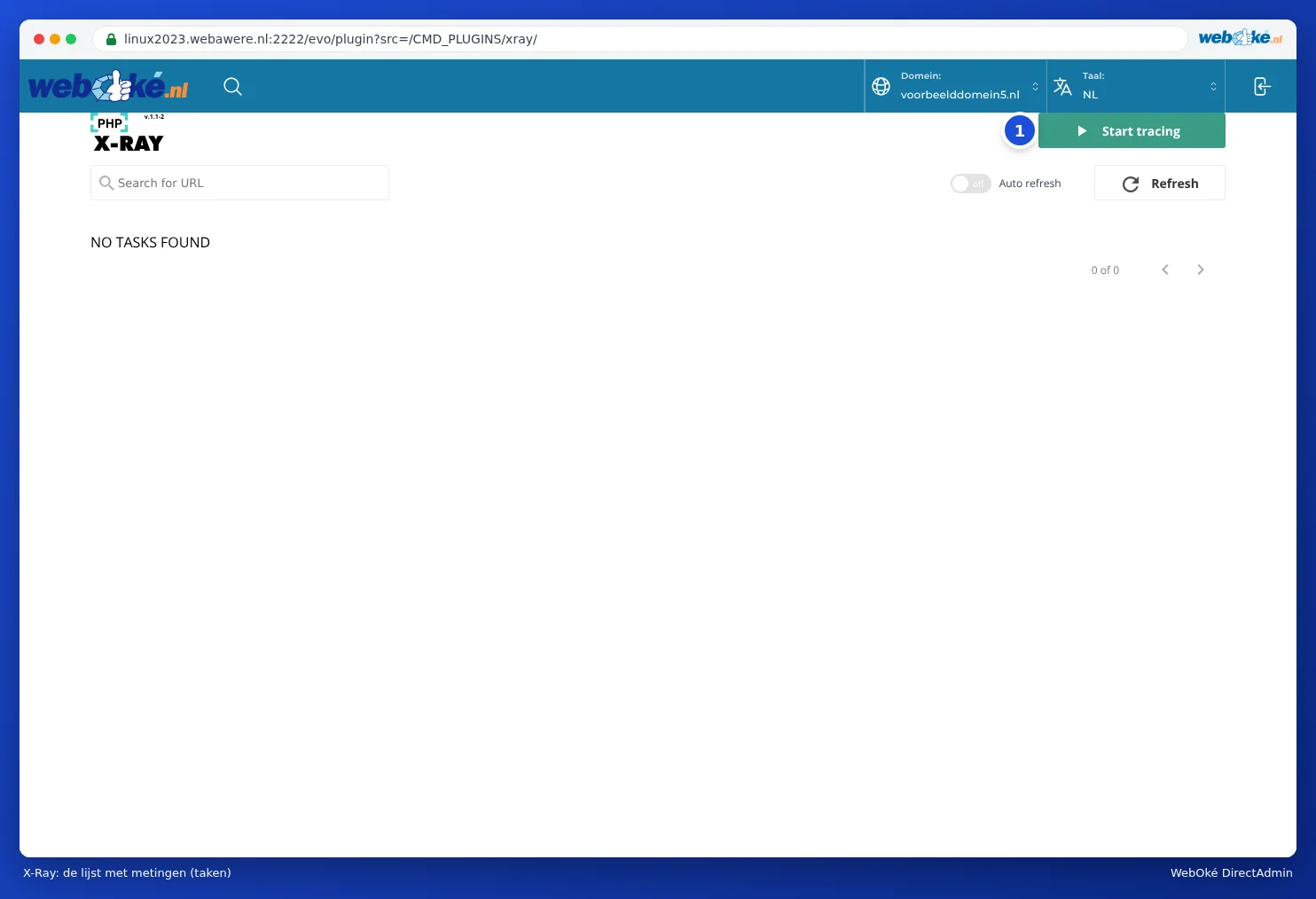
- In DirectAdmin, under Extra Features, click X-Ray. You'll see the list of measurements (tasks). If it says NO TASKS FOUND, you don't have any yet.
- Click Start tracing (1).
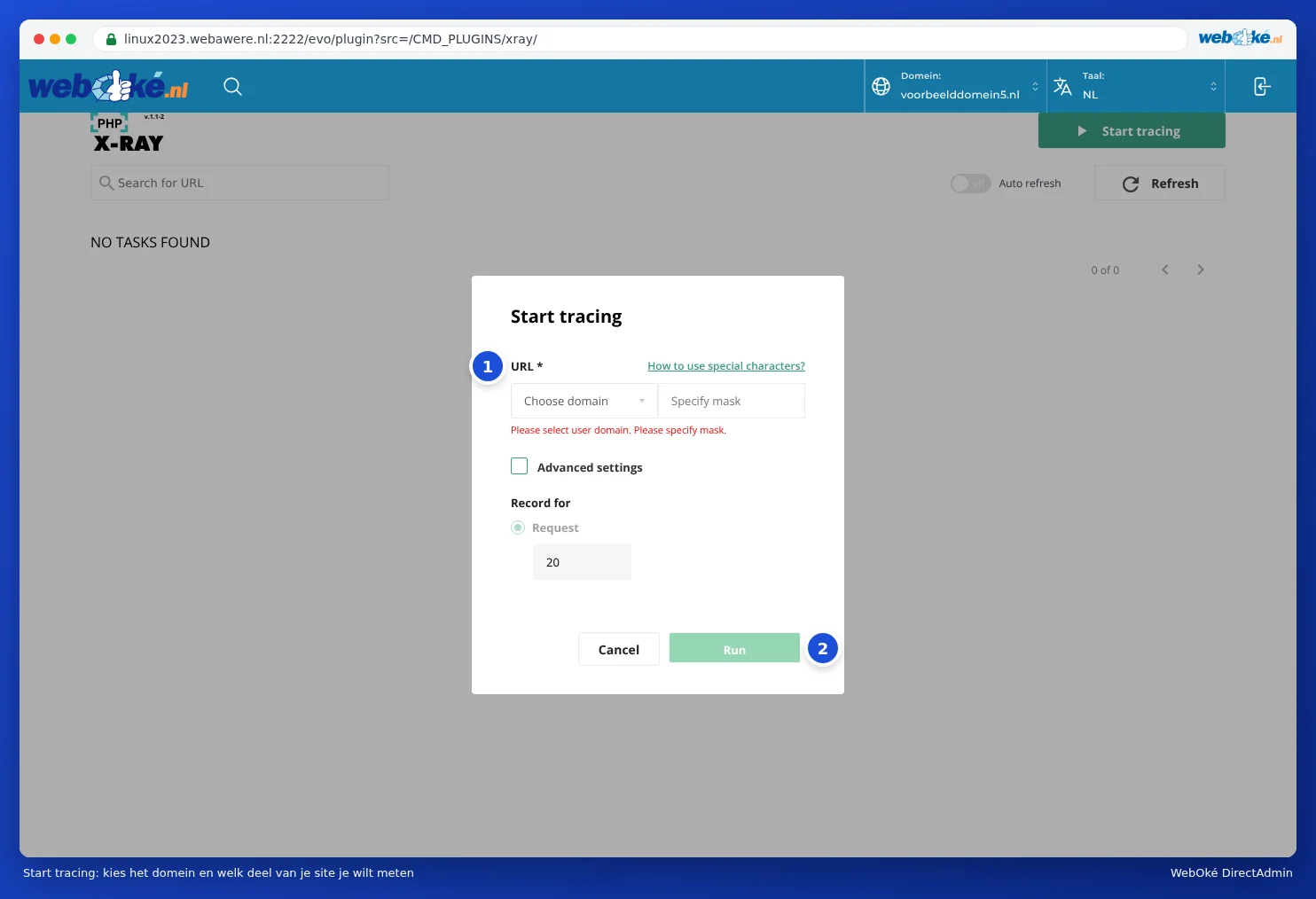
- Under URL (1), choose your domain and enter the part of your site you want to measure under Specify mask. Use /* to measure the whole site, or for example /shop/* for only the pages under /shop.
- Under Record for, you'll see how many requests will be measured (20 by default). Tick Advanced settings for more options.
- Click Run (2).
Collecting data
Now open your website in a private browser window and click around, especially on the pages that are slow. Or wait for regular visitors to come by. X-Ray captures requests until the set number has been reached. The list shows how many have already been measured.
Reading the report
- In the list, click the eye icon (view) next to your measurement.
- You'll see all the measured requests with their load times. Click the request that took the longest: that's where you'll find the most useful information.
- The report shows which parts took the most time: per plugin or module, the slowest database queries, and requests to external services.
Does one plugin stand out with a much longer time than the rest? Then that's probably the culprit. Update it, look for a lighter alternative, or disable it. Do you instead see lots of plugins each taking a bit of time? Then you simply have too many. Known heavy combinations include, for example, an extensive page builder together with a webshop and lots of extras.
What almost always helps?
- Use the LiteSpeed Cache plugin. Our servers run LiteSpeed, and with this plugin, pages are served ready-made from the cache.
- Only use plugins you really need.
- Choose a newer PHP version (see Selecting the PHP version (Select PHP version)) and turn on opcache (see Enabling and disabling PHP extensions).
- If your website no longer fits your package, choose a larger package in My WebOké.
Please note: During a measurement, every measured request is a little slower. Stop a measurement once you're done, and don't leave one running unnecessarily.