
Suspend domain or only take your website offline temporarily
Want to take your website offline temporarily? You can choose: suspend the whole domain, or just take the website offline so your email keeps working. In this article you'll read how both work.
Suspending the domain (website and email)
If you suspend a domain, the website is no longer reachable and no mail comes in on your addresses anymore. All data stays saved. You turn the domain back on the same way.
- Log in to DirectAdmin: in My WebOké go to My Products and click DirectAdmin next to your hosting package.
- Go to Account Manager and click Domains.
- Check the domain and click Suspended / Unsuspend.
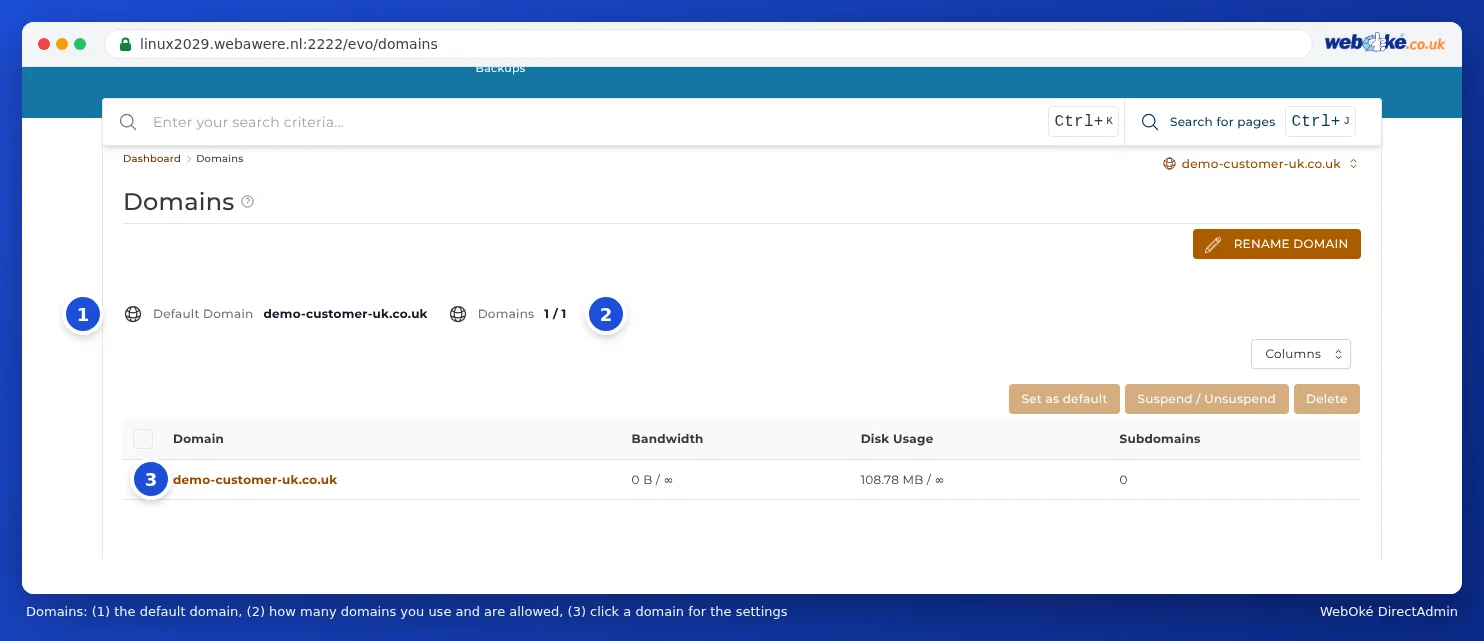
Click the same button again, and the domain becomes active again.
Only the website offline, email keeps working
If you want your mail to keep running as usual, don't suspend the domain. Instead, show a maintenance page. There are two ways to do this.
Method 1: a maintenance page via .htaccess (your website stays in place)
- Open File Manager in DirectAdmin and go to
domains/yourdomain.nl/public_html. - Create a file called
maintenance.htmlwith a short message, for example "We'll be right back". - Open the
.htaccessfile (or create it) and first save a copy. Put these lines right at the top:RewriteEngine On RewriteCond %{REQUEST_URI} !^/onderhoud\.html$ RewriteCond %{REQUEST_URI} !^/\.well-known/ RewriteRule ^ /onderhoud.html [L] - Every visitor now sees the maintenance page. Remove the lines once your website is allowed back online.
Method 2: removing the website. If you don't need the website anymore at all, empty the public_html folder and put an index.html with your message in it. See I want to delete my website but keep my email.
Suspending is not cancelling
When you suspend or show a maintenance page, your package simply continues and billing keeps going. If you want to cancel a package or domain, do that in My WebOké. See Cancelling products and domains.
Detailed explanation with screenshots: Deleting or renaming a domain in the DirectAdmin manual.