
Multiple domains or websites in one hosting package
You can put multiple domain names in one hosting package. Each domain can have its own website and its own mailboxes, or show exactly the same website as your main domain. Here's how it works and how to get more domains in your package.
Extra domain, alias, or redirect?
- Extra domain: the domain gets its own website and its own mailboxes in the same package. This counts towards the number of domains in your package.
- Alias (domain pointer): the domain shows the same website as your main domain and the name stays in the address bar. Mail to the alias arrives in the mailbox of the main domain. Read What is a domain alias (domain pointer)?
- Redirect: visitors of one domain end up on the other and the address bar changes. Read Setting up a redirect to another domain.
How many domains fit in your package?
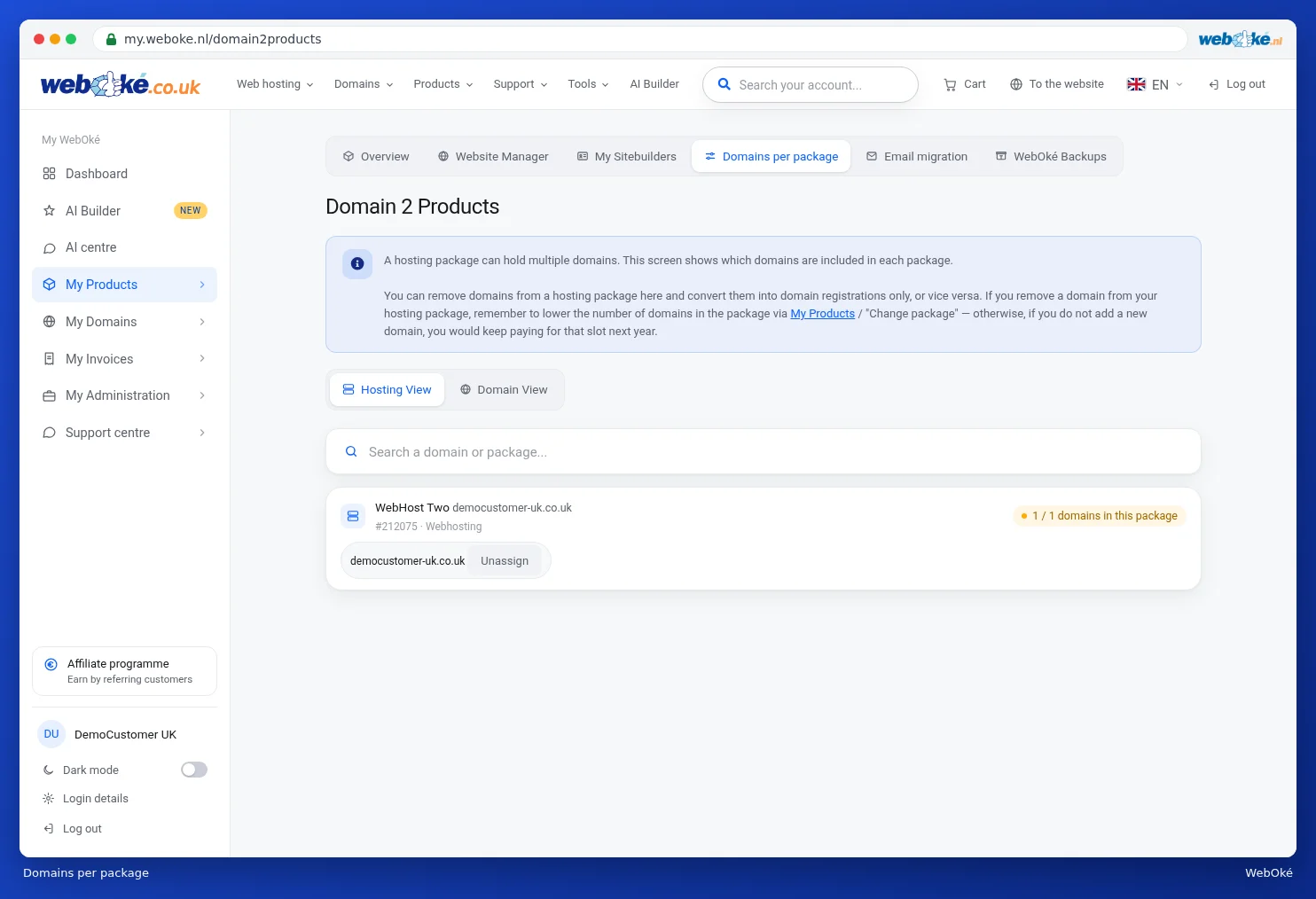
- Log in to My WebOké and go to My Products › Domains per package.
- For each package you'll see a counter, for example 1 / 1 domains in this package. The first number is how many domains are in it, the second is the maximum that fits.
More domains in your package
- Go to My Products › Manage for your hosting package.
- Under Configurable options, increase the number at Number of domains in the package. Below the number you'll see what one extra domain costs.
- Click Save options. You'll first see what you'll pay extra for the rest of your period. Then click Confirm and pay.

For an alias, increase the number at Aliases in the same spot.
Adding a domain to your package
Do you have room in your package? Then at Domains per package, click Add to hosting next to the domain, or Move next to a package, and choose your package as the destination. If your package is full, the window Your package is full will ask if you want to increase the number of domains. With Yes, increase and move you arrange both at once. Read Adding or removing a domain from a hosting package.
Is the domain at another provider? Then it won't show up in Domains per package. You add it yourself in DirectAdmin with Create Domain, read Adding an extra domain. For how to set up the DNS afterwards, read Hosting package for a domain that stays with another provider.
All domains share the package
All websites in a package share that package's processing power, memory, and storage. Are your websites getting a lot of visitors or using a lot of processing power? Then choose a bigger package (read How do I change or upgrade my hosting package?), or put a busy website in its own package. A reseller package can also help in that case: it lets you create a separate account per website.
Detailed instructions with screenshots: Domains per package and moving a domain and Changing options and extra IP addresses in the WebOké manual, and Adding an extra domain in the DirectAdmin manual.